CraftBox 3D keeps the most-used commands on the keyboard and the camera on the mouse. This page is the combined reference: the same list you will find in Settings → Keyboard Shortcuts, plus the mouse and touch controls that are not shown in the in-app sheet.
Print it, keep it in a second tab, or use it as a quick check while you model. The keyboard tables mirror the application exactly, including the new Shift + letter view shortcuts.
Keyboard
Keyboard shortcuts
On macOS, use ⌘ wherever the table shows Ctrl. Everything else is the same across platforms.
| Action | Shortcut | Notes |
|---|---|---|
| File | ||
| New box | Ctrl/⌘+N | Opens the New / Start a model dialog. |
| Save | Ctrl/⌘+S | Guest sessions open the save gate; signed-in accounts save to the cloud. |
| Open file | Ctrl/⌘+O | Imports a .c3d project file from your computer. |
| Edit | ||
| Undo | Ctrl/⌘+Z | Steps back through model edits. |
| Redo | Ctrl/⌘+Y | Ctrl + Shift + Z and ⌘ + Shift + Z also redo. |
| View Shift + letter | ||
| Home / isometric | Shift+H | Returns to the default three-quarter view. |
| Front | Shift+F | Snaps the camera to the front elevation. |
| Right | Shift+R | Snaps the camera to the right elevation. |
| Top | Shift+T | Snaps the camera to the top view. |
| Toggle grid | Shift+G | Turns the floor grid on or off. It does not move the camera. |
| Tools | ||
| Select mode | S | Click parts to inspect and select them. |
| Move mode | M | Shows the move gizmo for the selected part. |
| Measure mode | Q | Measures edges, points and profiles. |
| Keyboard shortcuts | ? | Opens the same sheet inside the app. |
| Editing | ||
| Delete selected part | Delete/⌫ | The base cannot be deleted. |
| Cancel mode / close | Esc | Leaves the active tool or closes the open panel. |
| Confirm field | Enter | Commits the value you are typing. |
| Apply / confirm dialog | Enter | Confirms an Apply button or a dialog action. |
New in the app
Why the View shortcuts use Shift
The camera views deliberately use a modified key now:
- Shift + H returns to the home / isometric view.
- Shift + F snaps to the front elevation.
- Shift + R snaps to the right elevation.
- Shift + T snaps to the top view.
- Shift + G toggles the grid.
Shift makes a view change a deliberate action instead of an accidental single-letter press while you are working with the tool shortcuts. If you learned the old single-letter view keys, add Shift: the unmodified H, F, R, T and G keys no longer change the camera. None of the Shift + letter combinations is a default browser command, so the editor does not take over a browser tab shortcut.
Single letters are for tools
S, M and Q select the Select, Move and Measure modes. The View keys all use Shift, so the two sets stay easy to remember.
Camera and navigation
Mouse controls
| Action | Control | What happens |
|---|---|---|
| Orbit | Left-drag in the 3D view | Rotates the camera around the model. |
| Pan | Right-drag in the 3D view | Slides the view without rotating it. |
| Zoom | Mouse wheel | Zooms in and out. |
| Zoom (alternate) | Middle-drag | Dolly zoom toward or away from the model. |
| Swap orbit and pan | Hold Shift, Ctrl or ⌘ while dragging | Left-drag pans and right-drag orbits while the modifier is held. |
| View cube | Click a face, edge or corner | Snaps the camera to that direction. |
| View cube orbit | Drag the view cube | Orbits the camera freely. |
Right-drag is reserved for panning in the viewport, so the browser context menu is suppressed there. Use the ribbon, Properties panel or the keyboard shortcuts for actions instead.
Selection and editing
Selecting and moving parts
| Action | Control | What happens |
|---|---|---|
| Select a part | Left-click a wall, base, top, divider or component | Highlights the part and opens its Properties. |
| Clear selection | Left-click empty space | Deselects the current part. |
| Move a part | Select it, press M, then drag an axis handle | Moves along X, Y or Z; the floating field shows the offset. |
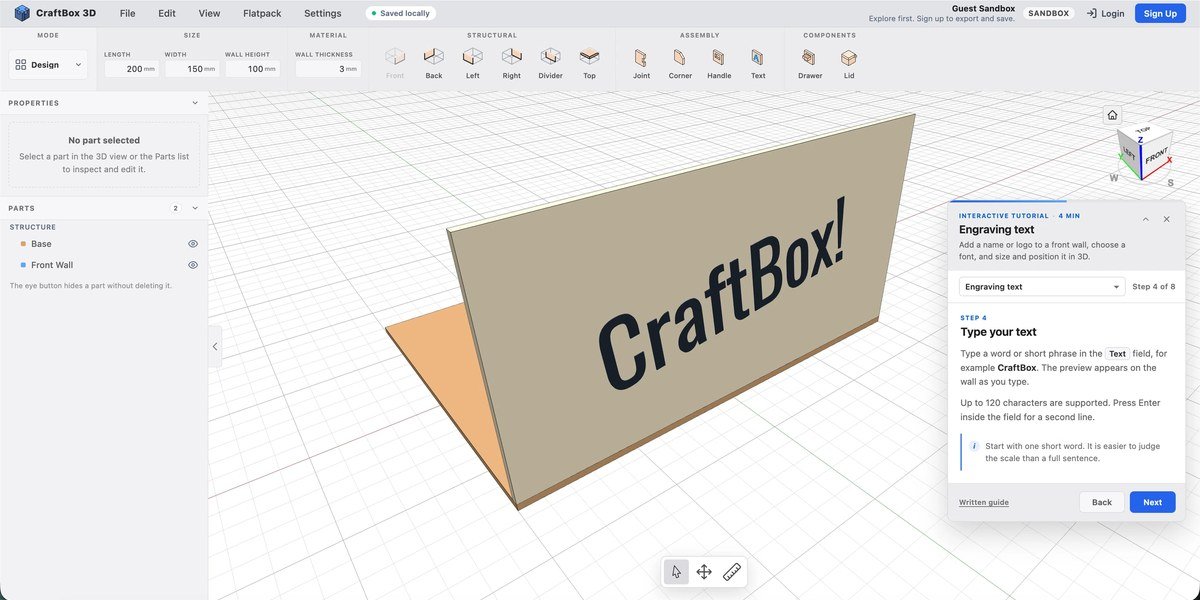
| Move text | In the Text tool, drag inside the blue text box | Repositions the engraving on the face. |
| Scale text | Drag the green handle at the top-right | Makes the lettering larger or smaller. |
| Rotate text | Drag the orange handle at the top-centre | Rotates the engraving on the face. |
| Move a divider | With the Divider tool active, drag the ghost preview | Slides the divider to a new position before applying. |
Tablets and touch screens
Touch gestures
- One-finger drag: orbit around the model.
- Two-finger pinch: zoom in and out.
- Two-finger drag: pan the view.
- Tap a part: select it; tap empty space to deselect.
Touch screens use the same selection and Properties workflow as the mouse. For precise numeric editing, the ribbon and Properties fields remain the most reliable input.
Good to know
Shortcut behaviour
- Typing wins. Shortcuts are ignored while an input, textarea or select has focus. Press Esc to leave the field.
- Modes can pause shortcuts. While the custom-wall sketch editor or Flatpack view is active, global shortcuts are paused. In the technical drawing view, Esc steps back through the active tool and then closes the view.
- Mac keys. Use ⌘ in place of Ctrl; the Shift + letter view keys are unchanged.
- The question mark. ? opens the shortcut sheet. On layouts where the question mark needs Shift + /, that combination works too.
- No browser collisions. Shift + H, F, R, T and G are editor shortcuts only; they do not replace a default browser command.
Common questions
Shortcuts FAQ
Do the shortcuts work the same on macOS?
Yes for the actions, but use Command where Ctrl is shown. The View shortcuts are still Shift plus the letter, and Redo also accepts Command + Shift + Z.
Why do the View shortcuts use Shift?
Shift makes view changes deliberate and avoids single-letter collisions with the tool shortcuts and browser behaviour. The tool shortcuts remain S, M and Q.
Do shortcuts work while I am typing in a field?
No. Inputs, textareas and selects capture the keys so you can type dimensions and text normally. Press Escape to leave the field, then use a shortcut.
How do I orbit, pan and zoom?
Left-drag orbits, right-drag pans and the mouse wheel zooms. Middle-drag also zooms. On a trackpad or touch screen, one finger orbits and two fingers pinch or pan.
Why does right-click not open a menu in the 3D view?
Right-drag is reserved for panning, and the browser context menu is suppressed over the viewport. Use the ribbon or the Properties panel for actions.
Where can I see the shortcut list inside the app?
Press Shift + / (the question mark key) or open Settings, then Keyboard Shortcuts. The in-app sheet mirrors the keyboard tables on this page.
Does Shift+G snap the view?
No. Shift+G toggles the grid. Shift+H returns to the home/isometric view, and Shift+F, Shift+R and Shift+T snap to the front, right and top views.
Keep going